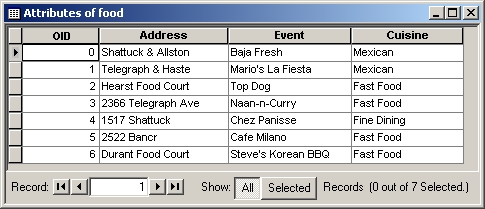
Some of the addresses are misspelled, as a test of the software's ability to match misspelled streets. I added a "cuisine" field so that different classes of cuisine can be symbolized on the map.
Many organizations keep databases of addresses, for example addresses of customers or events. Geocoding means translating addresses into spatial locations on a map, where they can be displayed, correlated with other layers of the map, etc.
I feel hungry. This is what I'm thinking about:
Some of the addresses are misspelled, as a test of the software's ability to
match misspelled streets. I added a "cuisine" field so that different
classes of cuisine can be symbolized on the map.
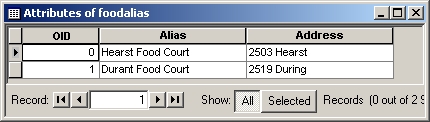
Also, it's convenient to have aliases for frequently cited addresses:
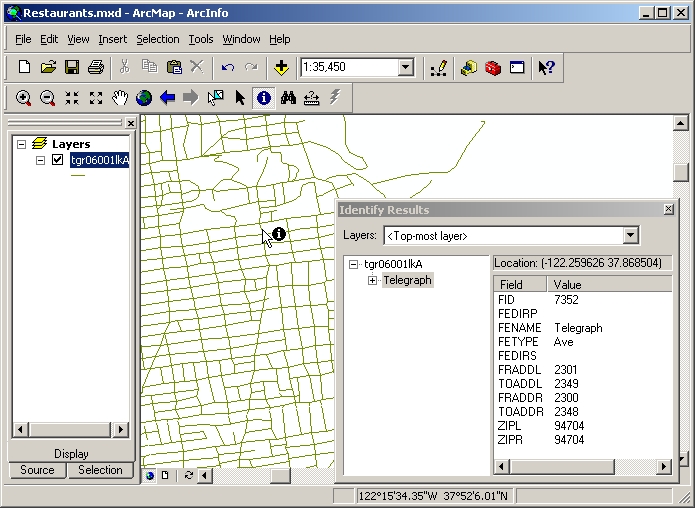
I would like to show the downtown and campus on my map, so instead of
using the Claremont Canyon streets, I went to ESRI's
census download site (which we used in Lab 6) and downloaded the TIGER streets layer for Alameda
County. Below, it is zoomed to the south side of campus. This layer has all necessary fields for geocoding street addresses, as well as
zip codes.
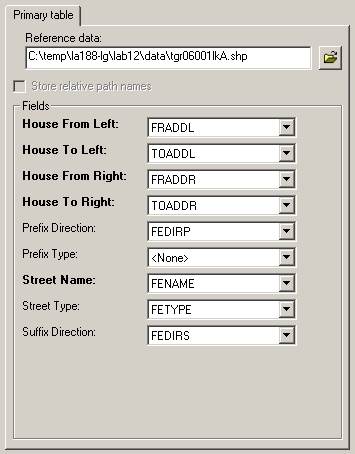
To link the addresses to spatial locations, I need to specify
the geographic feature layer and alias table, as well as the options to be used
by the matching algorithm. Given the TIGER streets layer, ArcCatalog correctly
recognized the meanings of its fields, without needing further instruction:
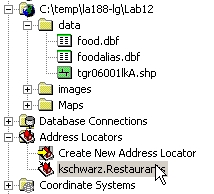
ArcCatalog records this
information in an "address locator", which appears in the top level of
the catalog tree under the Address Locators icon. This is really a file with extension
.loc, saved under the user's Application
Data folder. In order to use it again in another session on a different computer,
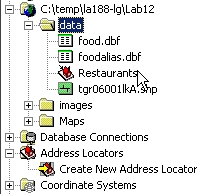
I'll have to save it someplace else. Xing suggested dragging it to my lab folder
in ArcCatalog's catalog tree.
 |
Drag to Lab12\data folder: |
 |
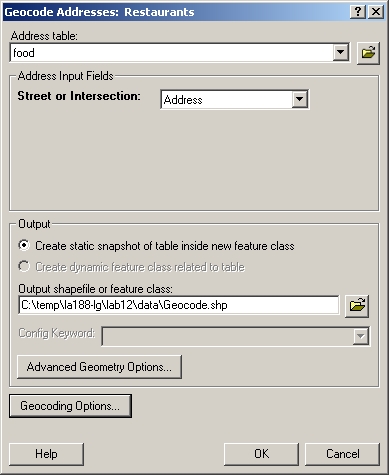
Given the address locator, ArcMap is ready to translate the table of addresses into spatial
locations, and create a new point feature layer.
ArcMap reports how well it did with finding the addresses on the
streets. Most matches have less than perfect scores because the street type
was left out of the address table: "Telegraph" isn't a perfect match
to "Telegraph Ave."
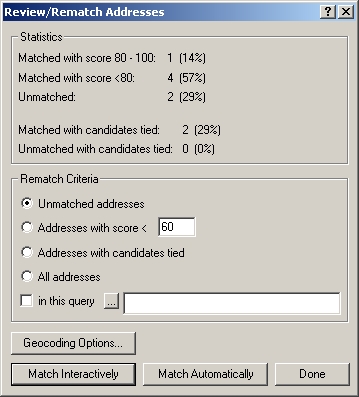
Ambiguous or failed matches should be reviewed. (If I don't
want to review the unmatched ones now, I can do it later via Tools > Geocoding > Review/Rematch
Addresses.) First, I selected
"Addresses with candidates tied", and clicked "Match
interactively". The top of the Interactive Review dialog shows the addresses with tied candidates; the bottom shows the 2 candidates for the
highlighted address, Hearst Food Court. Which is the right one?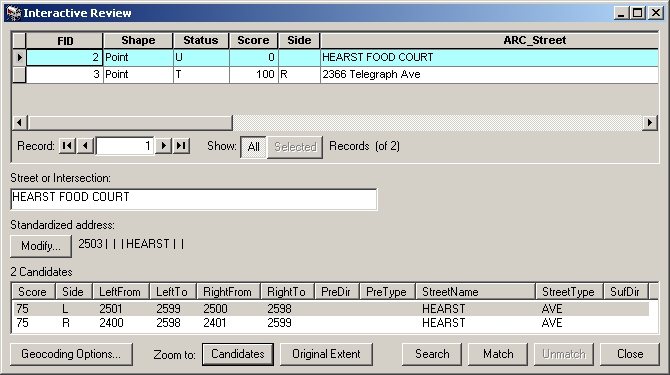
I clicked Zoom to Candidates and looked back at the map. The candidate that
is highlighted in the box is marked in yellow on the map, and the other
candidate is in cyan (at bottom right):
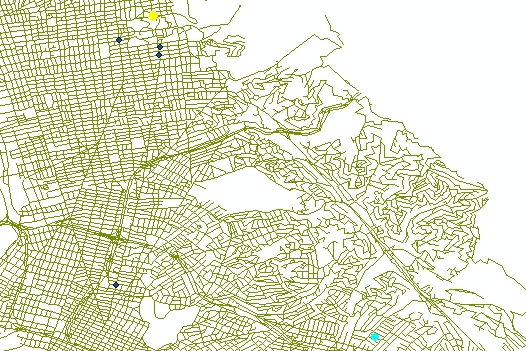
Now it's obvious that the yellow dot on the north side of campus is correct, and the cyan dot is a false match from a different Hearst Avenue way over in Oakland. I clicked the Match button at the bottom of the dialog box to tell ArcMap to record this candidate as correct. The other tie was also a case where the same street address exists in both Oakland and Berkeley. Evidently, I've discovered a problem with a streets layer that covers a large area! I should have used zip codes to disambiguate the addresses, or clipped out a smaller area from the streets layer.
After closing the review of the tied addresses, I selected "Unmatched
addresses" and again went to "Match interactively":
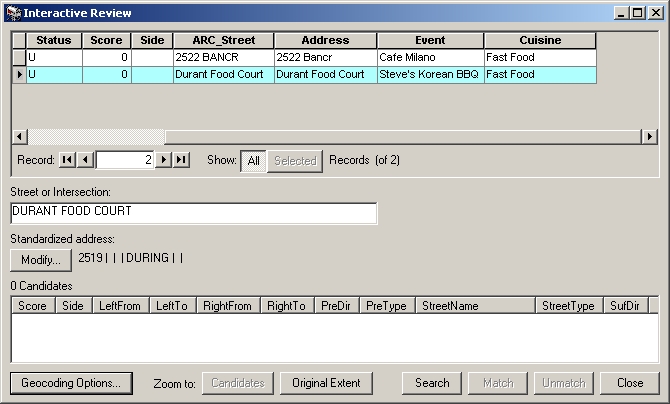
These addresses are misspelled, and the algorithm didn't find anything very
close. To find more distant matches, I clicked Geocoding Options at the
bottom left. In creating the address locator, I accepted all the default
options; now I need to change them. (There's a lot going on under the hood here;
pattern matching is a nontrivial area of computer science.)
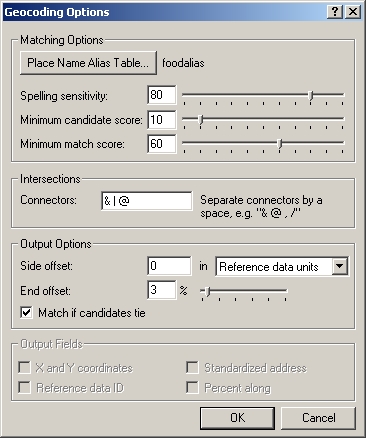
When "Spelling sensitivity" is lowered from 80 to 60, BANCROFT is
identified as a candidate for "Bancr", but "During" (address
of alias Durant Food Court) still
has no candidates. When the sensitivity is lowered a little further to 55,
DURANT AVE and DARWIN ST appear as candidates. DARWIN is way down in Hayward on
the map, so DURANT is correct. All the addresses are now matched. ArcMap also
automatically found intersections, such as Telegraph & Haste, without
any trouble.
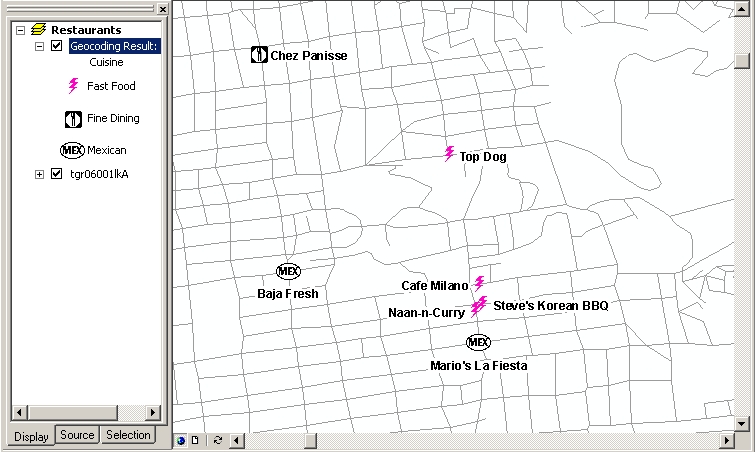
I categorized the restaurants by type of cuisine, and found some interesting
symbols under More Symbols > Business in the Symbol Selector dialog. Then,
since the points are so close together, I played around with the label
placement, defining different placement for addresses on left and right
sides of the street, as defined by the geocoding.
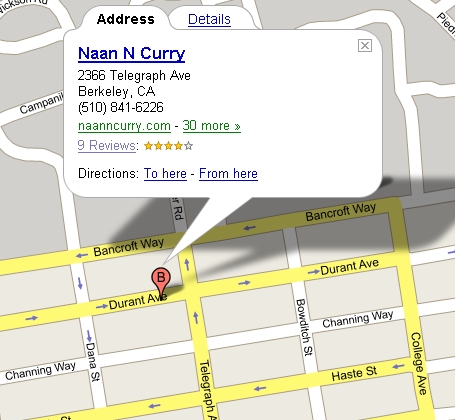
Let's compare Google
Local's response to the query "naan-n-curry in berkeley, california".
Google incorrectly placed the marker around the corner on Durant, even
though the address is correctly listed on Telegraph.
Google also places Top Dog on the wrong block, west of Euclid instead of east
of it.
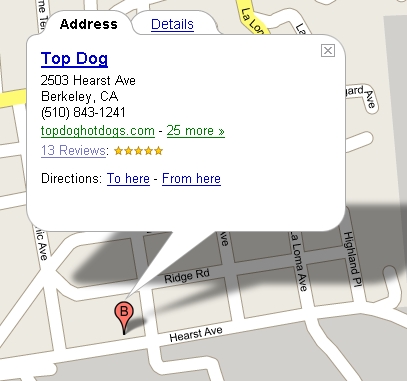
It looks like ArcMap beats Google at this task! This is rather surprising; I have no idea why Google would make such mistakes.