

Thunderbird (for Windows or Mac)
From Thunderbird's opening screen, select "Email" under "Create a new account".
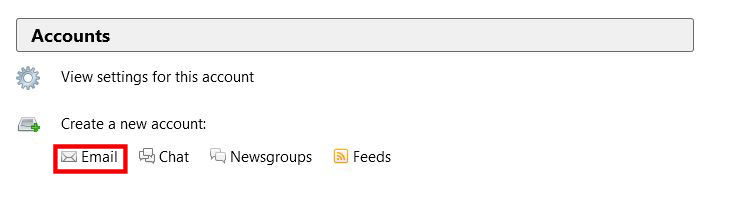
This will bring up the first Mail Account Setup window:
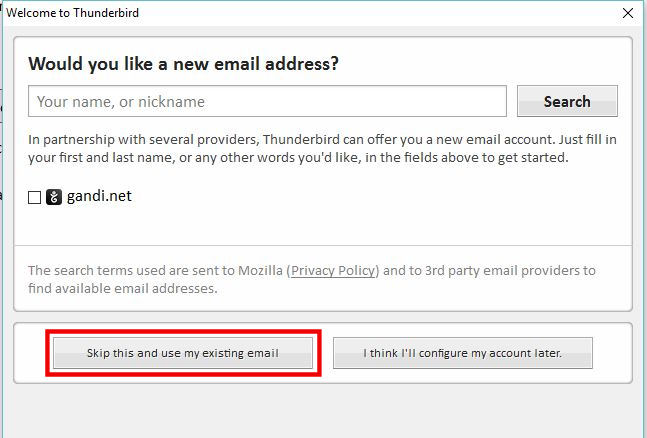
Click "Skip this and use my existing email".
On the next window:
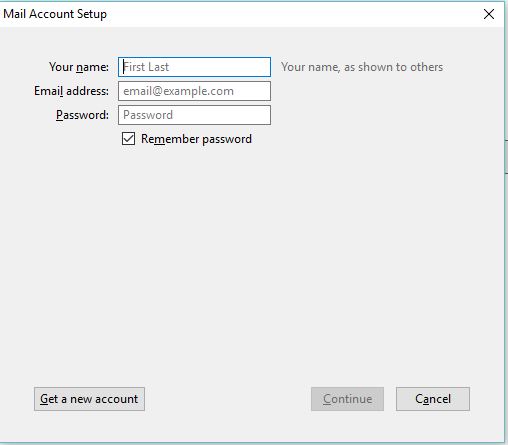
Fill out your name, email address, and password. Click "Continue" when you're done.
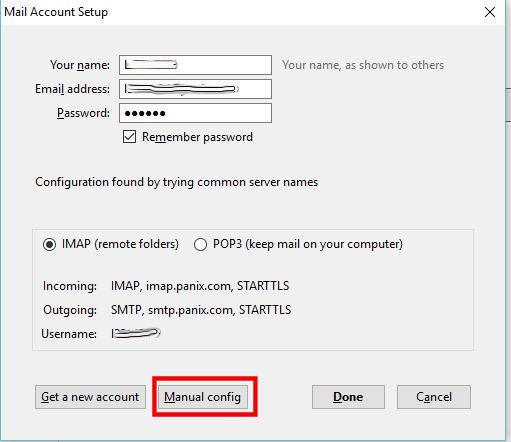
On the next window, Thunderbird will detect and display the server settings (this requires that you be online). It will do so incorrectly, so click on "Manual config".
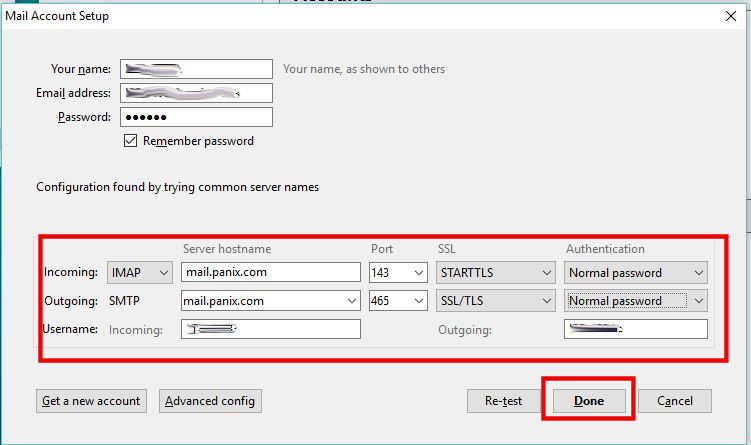
The incoming mailserver is "mail.panix.com", and uses IMAP; Security is optional (but strongly recommended), and should be "STARTTLS" if used; the port should be 143. The outgoing mailserver is also "mail.panix.com"; security is "SSL/TLS" and the port is 465.
Click "Done" and you're done!
Last Modified:Monday, 27-Jun-2016 13:42:24 EDT
© Copyright 2006-2021
Public Access Networks Corporation